Bash exercise
For this exercise, please log in to the Linux ThinLinc environment. You can find instructions to log in and setup ThinLinc here.
Follow the instructions below to complete this exercise, and put your answers to the questions into the Exercise 2 quiz on Canvas.
Creating a new directory and copying files into it
Open the “Terminal” app and navigate to your home directory:
Bash command line
cd ~Create a new directory called “exercise2”
Bash command line
mkdir exercise2Open the “Files” app (filing cabinet icon in the dock)
Along the left, click on the “Biol5800-6800” folder
Right-click on the “answer1.txt” file, and click on “Copy to…”
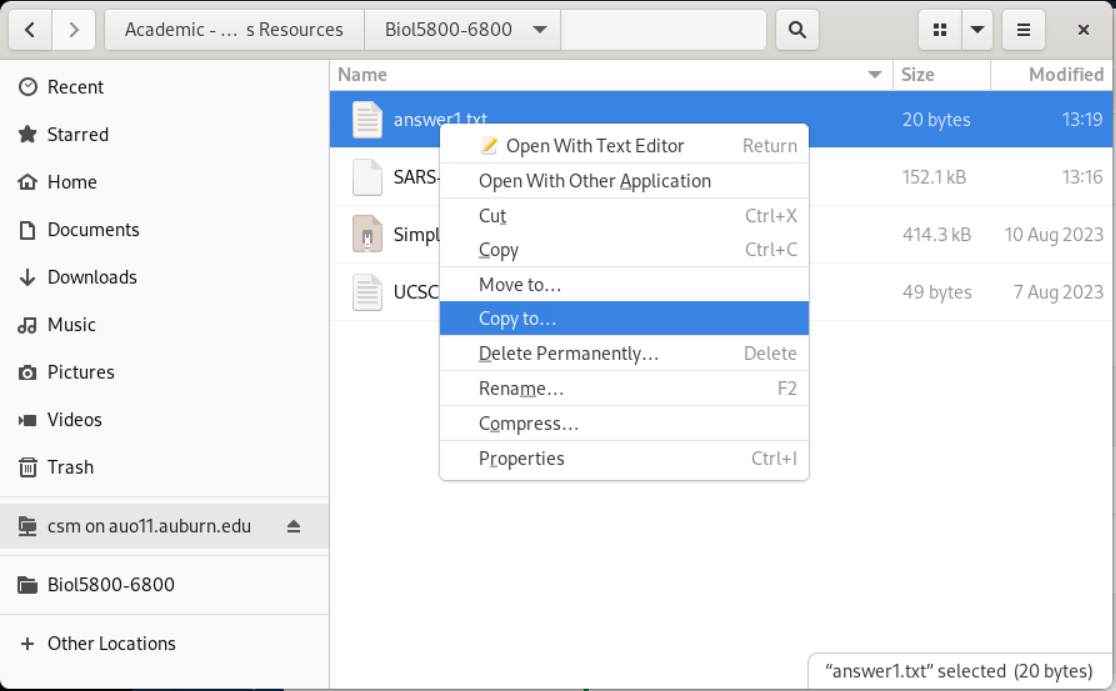
Figure 1: Copying shared file in Files app. In the “Select Copy Destination” window:
- Click “Home” along the left and then select the “exercise2” folder
- Click “Select” in the upper right of the window
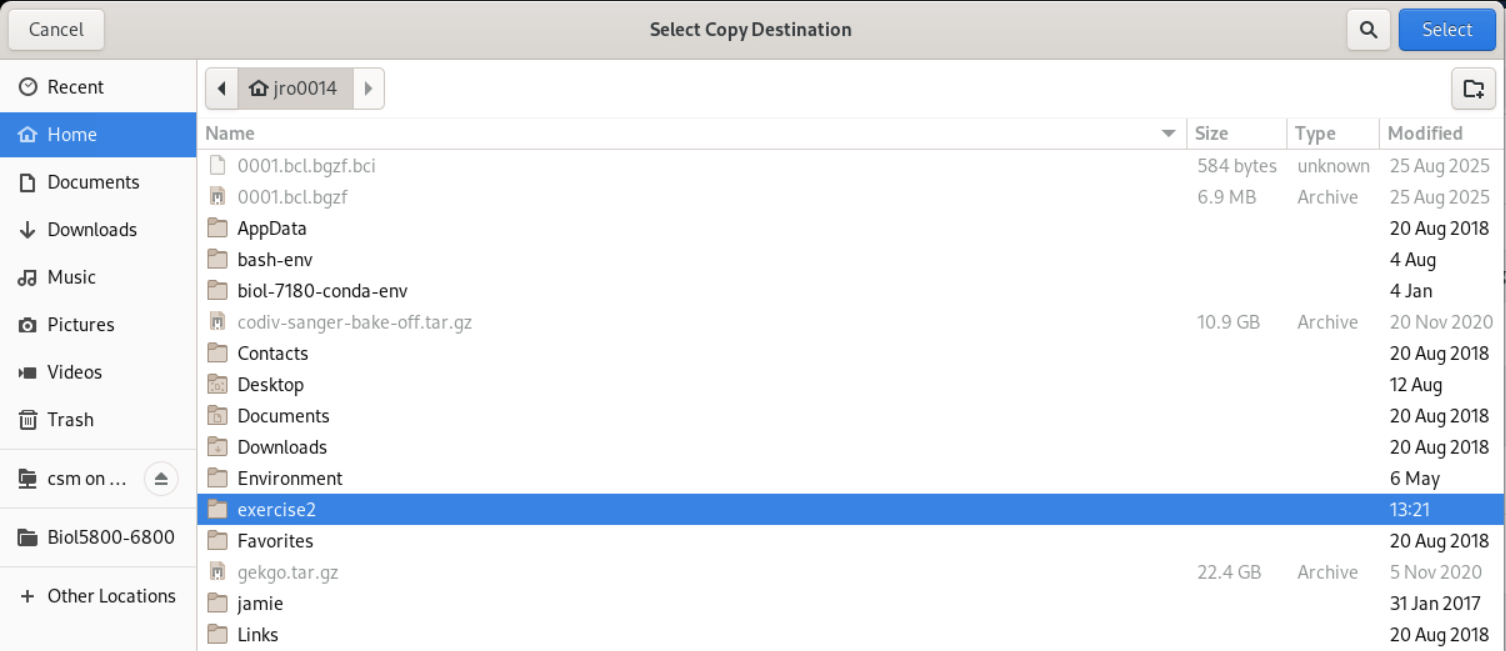
Figure 2: Selecting “exercise2 folder as copy destination. Repeat the 2 previous steps for the “SARS-CoV-2.fasta” file to copy it to the “exercise2” folder
Now, go back to your Terminal window and move into the “exercise2” directory and confirm the files you copied are there:
Bash command line
cd exercise2
ls
Question 1
Use the command line to see what is in the answer1.txt file. Enter what you find in the file into Question 1 of the Exercise 2 quiz on Canvas.
- Hint: The commands
catorlesswould be useful. You can usemanto learn more about both of them. - Hint: If you log in to Canvas within ThinLinc, you can copy and paste the answer!
Manipulating sequence data
The “SARS-CoV-2.fasta” file contains nucleotide sequence data from different strains of the SARS-CoV-2 virus. The sequences are in a format called FASTA. The FASTA format looks like:
>Name1
AATCGGCTA
>Name2
ATTCGCCTA
Question 2
Use the command line to determine the number of sequences in the “SARS-CoV-2.fasta” file.
Notice all sequences start with a “>” character to specify the seqence’s name. We can use that to count the sequences efficiently. Try:
Bash command line
grep ">" SARS-CoV-2.fastaNOTE: Putting quotes around the
>character is important, because in the Bash language, this character is normally used to redirect output!grepis a very useful command for finding string patterns. You can learn more about it withman grep.grepworks okay for this small FASTA file, but what if there were 1000s of sequences in the file? You wouldn’t want to count them “by hand!”We can use the
wccommand (word count) for counting the sequences. Try:Bash command line
grep ">" SARS-CoV-2.fasta | wc -lThe pipe (
|) character converts, or “pipes”, the output of one command to input to another command.wc -lwill count the number of lines output bygrep
Put the number of sequences into Question 2 of the Exercise 2 quiz on Canvas.
Question 3
What does the -l flag in the wc -l do? Hint: use the man command to find out!
Question 4
What is your output for the following command?
Bash command line
whoamiQuestion 5
What is your output for the following command?
Bash command line
echo $MACHTYPEQuestion 6
What is your output for the following command?
Bash command line
uname -aQuestion 7
What does the -a flag do in the uname -a command (use man to find out!)?