AU COSAM Linux ThinLinc
Logging in and setting up
The IT group of the Collage of Sciences & Mathematics (COSAM IT) hosts a Linux desktop environment that can be run in a web browser using the software called ThinLinc. COSAM IT was kind enough to provide access to this Linux ThinLinc environment to all the students in our class.
Important! Please read the next 2 sections and don’t skip to logging in!
Logging out of a ThinLinc session
Before we learn how to log in to a ThinLinc session, you need to know how to log out.
You cannot log out by closing your browser window!
Instead you need to:
- Click the power icon a the top right of the Linux desktop in your browser window
- Click “Power Off/Log Out”
- Click “Log Out”
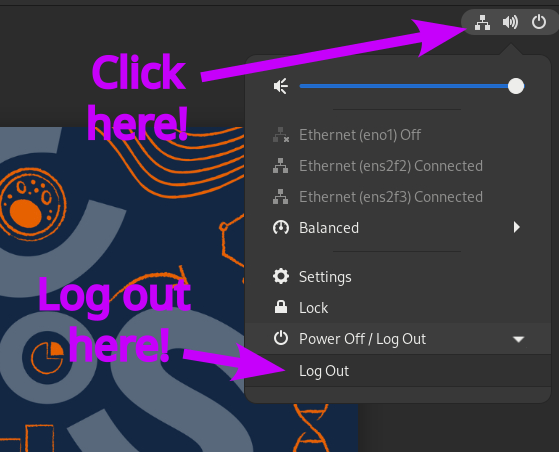
If you do close your brower by mistake, it’s OK! Just go back to https://csm-earth.auburn.edu. The screen might look black, but that is just the Linux desktop’s lock screen. Click the black screen and you will be prompted to enter your password to unlock the screen. Use the same AU password as when you logged in (see below).
If you close your browser without logging out, your ThinLinc session remains active and uses resources on COSAM’s servers. So, please remember to log out when you’re done.
I was using ThinLinc but now have a black screen!
No worries, the black screen is the Linux desktop’s lock screen. Click on it and you will be asked to enter your password to unlock the screen. Use the same AU password as when you logged in.
Logging in to a ThinLinc session
Make sure you are connected to AU’s VPN.
Open your web browser and go to https://csm-earth.auburn.edu. You should see a login screen that looks like the screenshot below.
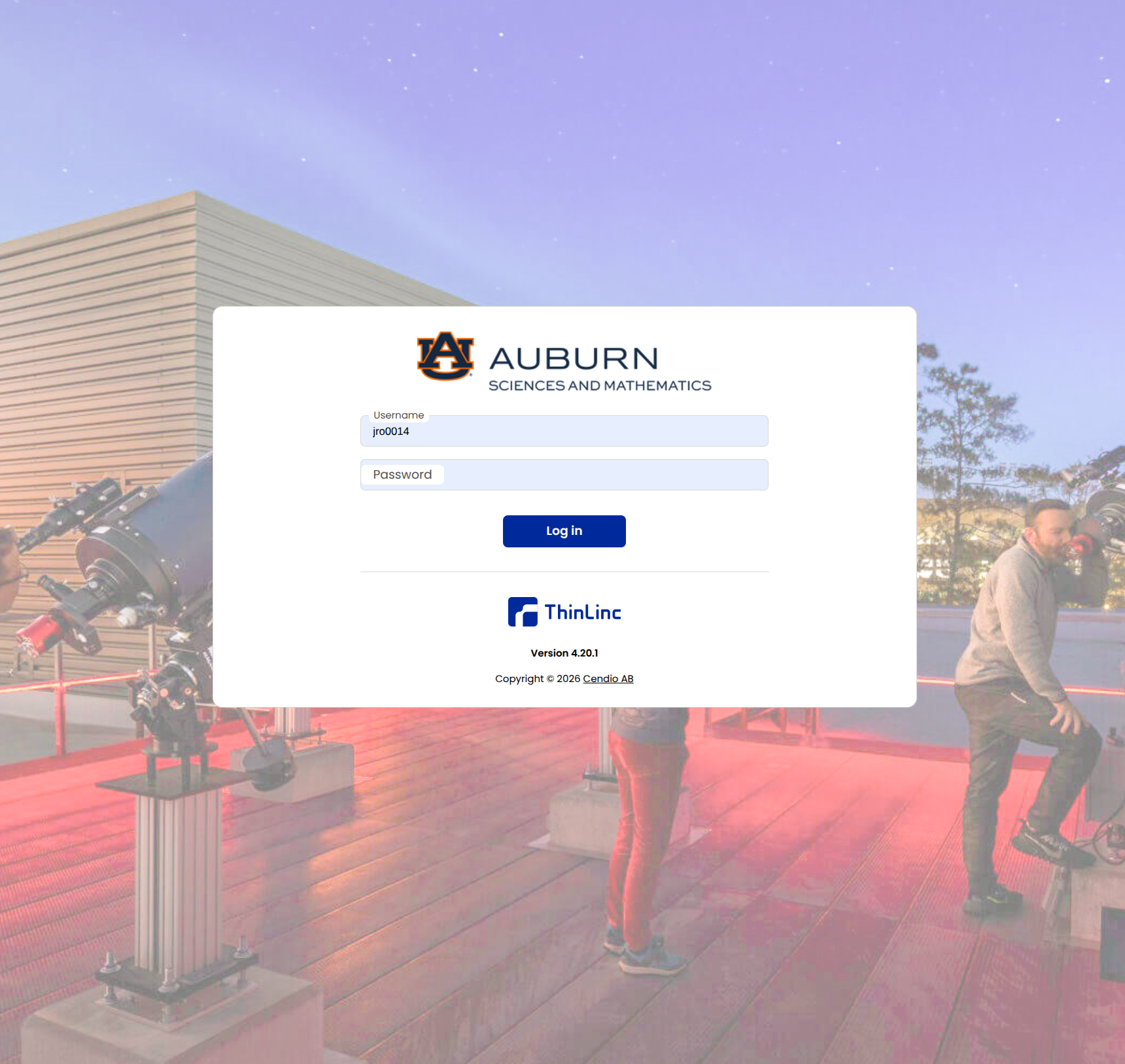
Figure 2: Linux ThinLinc log in page. In the “Username” field, enter your AU username (the first part of your AU email before the “@” symbol). For the password, enter the password for you AU account. Then, click “Log in”
You will see a prompt for 2-factor authentication like the one below. Enter the number associated with your preferred mode of authentication. In the example below, to use DUO, type “1” and click “Next.”
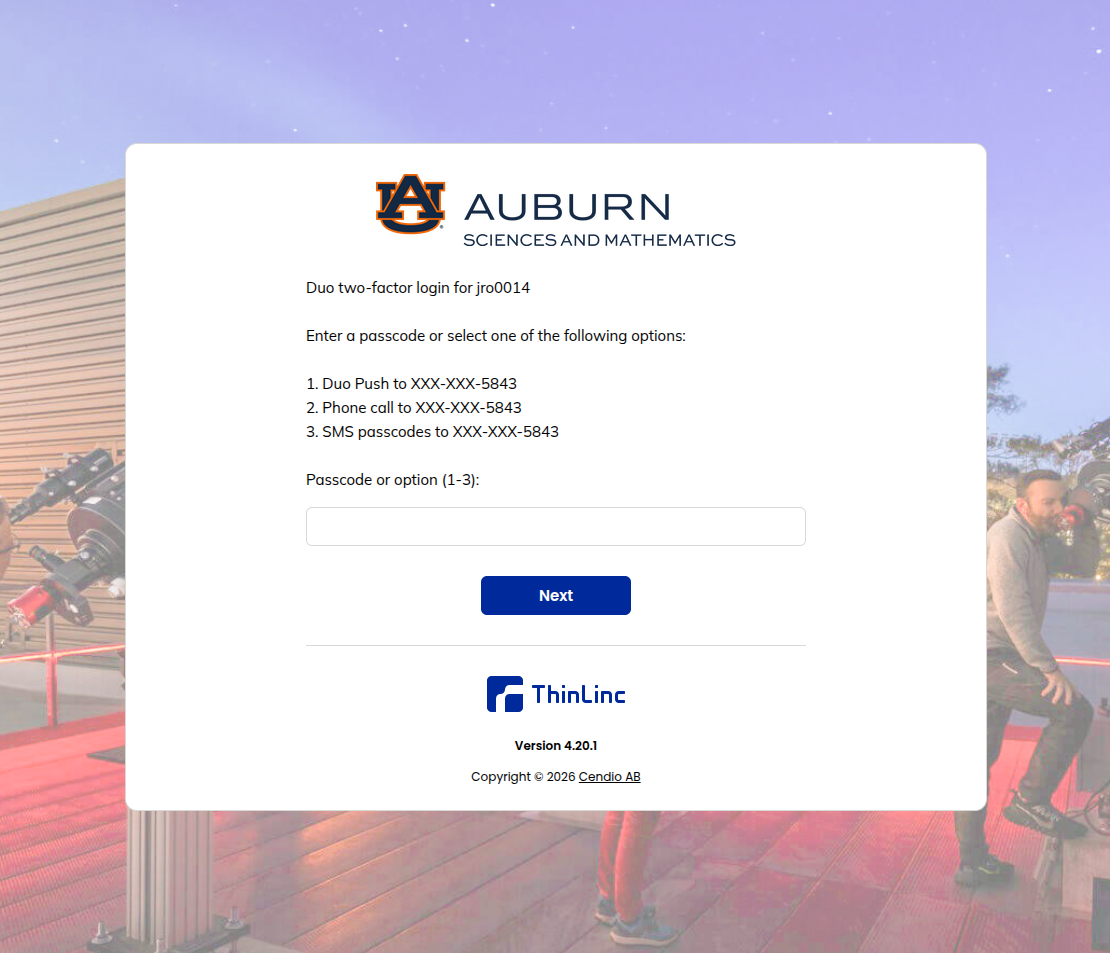
Figure 3: Linux ThinLinc prompt for 2-factor authentication. After authenticating, the Linux Desktop will begin to load in your browser. This can take 30 seconds or so. Once the Linux Desktop has loaded, you can click “Activities” in the upper left of the desktop to reveal a dock along the bottom of the desktop. You can use the dock to launch applications (Figure 4).
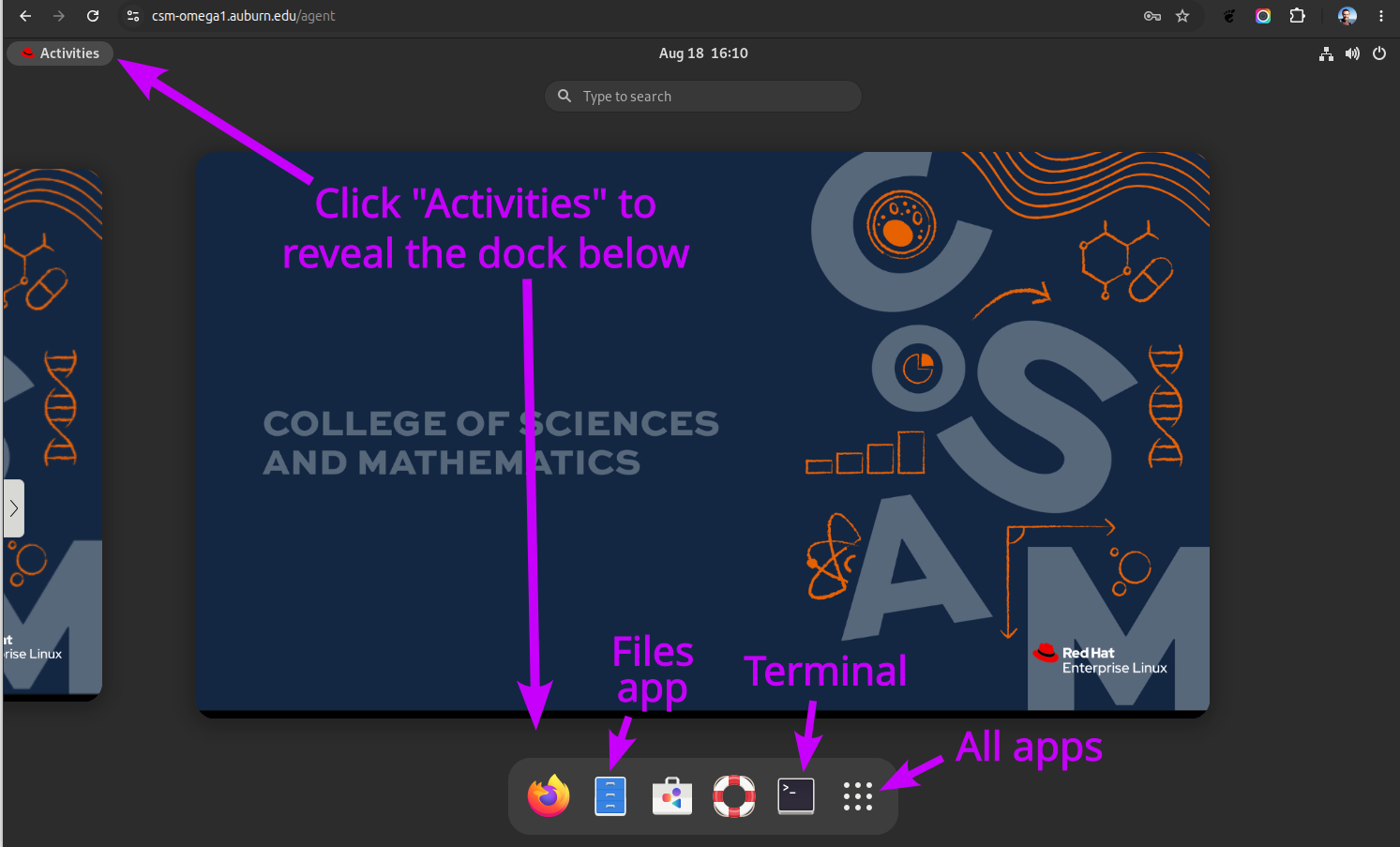
Figure 4: How to view the dock and launch apps.